
Recovering a Tuya Local Key Without the Cloud (and Reimplementing the App API) #
Introduction #
I run most of my smart-home gear locally. A Tuya-based garden watering controller sits on my LAN, exposes the usual 6668/tcp local protocol, and is driven from Home Assistant through the localtuya custom integration. It has been rock solid for months — until one day it wasn’t:
Handshake with <device>:6668 failed due to: Session key negotiation failed on step 1That message means exactly one thing: the stored local_key is wrong. A Tuya device has a per-device 16-byte key, rotated every time the device is (re)paired, and the only authoritative source is Tuya’s cloud. Normally you fetch it with a Tuya IoT Platform project and tinytuya wizard. Mine had expired, and Tuya now hands out that capability on a short leash.
This post is the story of getting the key back anyway: first by cloning the vendor app into a rooted Android emulator and reading the key straight out of its process memory, and then by reimplementing the app’s own cloud protocol in Python so the whole thing is repeatable — including scan-to-login by QR code.
Everything here is on hardware and accounts I own. No third-party devices were touched.
TL;DR #
- A Tuya device’s
local_keyis required for local (non-cloud) control, and it rotates on re-pair. - The official way to get it (IoT Platform +
tinytuya wizard) needs a project whose trial had expired. - The phone running the Tuya app was not rooted, so ADB couldn’t read its data, and the app’s on-disk store is encrypted anyway.
- What did work: run the same app in a rooted Android emulator (
google_apisAVD +adb root), log in, and dump the app’s process memory — the decrypted device JSON was sitting there in plaintext. - Bonus: I reimplemented the app’s mobile API (
a1.tuyaeu.com/api.json, HMAC-SHA256 signed) in ~200 lines of Python, with password login, QR scan-to-login, and even reuse of an existing app session — all verified live.
Background: what a “local key” actually is #
Tuya devices speak a simple local protocol on TCP 6668 (and broadcast discovery on UDP 6666/6667). Payloads are AES-encrypted with a per-device local_key that the Tuya cloud assigns. localtuya in Home Assistant stores that key and uses it to talk to the device directly, no cloud round-trip.
Two consequences:
- If the device is re-paired, the key changes and the integration breaks.
- There’s no way to derive the key locally; devices don’t hand it out over the LAN. You either get it from the cloud or from the app.
For the watering controller, the important datapoints were:
| DP | Meaning |
|---|---|
| 1 | Power (bool) |
| 2 | Mode (schedule / manual) |
| 28 | Pump select |
| 56 | Runtime / duration (s) |
| 101, 102 | Interval, countdown |
The dead ends #
Before the clever stuff, the boring stuff.
1. The IoT Platform project — expired #
tinytuya wizard needs a Cloud Project (Access ID/Secret). Tuya has been tightening this: the trial expires, refreshes are limited, and newer app namespaces don’t map cleanly to the “old” OpenAPI. Direct queries simply failed with auth/permission errors.
2. ADB to the phone — not rooted #
I had the Tuya app on my phone, so I enabled Wireless debugging and connected from a Linux box:
$ adb pair 192.0.2.31:39143 123456
Successfully paired to 192.0.2.31:39143
$ adb connect 192.0.2.31:38341
connected to 192.0.2.31:38341
$ adb shell id
uid=2000(shell) gid=2000(shell) ...
The pairing port and the connect port are different; a quick port scan found the adbd port. But the phone was not rooted, and Android 12+ neuters adb backup:
$ adb shell run-as com.tuya.smart id
run-as: package not debuggable: com.tuya.smart
$ adb shell ls /data/data/com.tuya.smart
ls: /data/data/com.tuya.smart: Permission denied
$ adb backup -noapk -f tuya.ab com.tuya.smart
... 47 bytes (empty)
No root, no app data. And even with the data, the app encrypts it — its preferences looked like this:
<string name="54B6D88C71BAE5...">TsxMWCrik8XBGmdo]9h69iSrB0+...==</string>Random-looking keys, AES blobs for values. Disk extraction was a non-starter.
3. Flashing the device #
I considered cutting the cloud out entirely (replace the firmware with OpenBeken/ESPHome). It’s a Tuya “CB3S”-class module plus a Tuya MCU on a shared UART, so it needs either a compatible OTA exploit profile (this model wasn’t listed) or an SMD module swap. Fun, but a lot of soldering for a Tuesday night.
The approach that worked: a rooted emulator #
The app has to have the key to control the device, which means the key exists — in plaintext — inside a running Tuya app process. If I control the process’s environment, I control its memory.
Plan: clone the app into an Android emulator I fully control, log in, and read the key out of RAM.
Bootstrapping a root-capable AVD #
The key detail: use a google_apis system image, not the Play Store one, because those are userdebug builds where adb root works.
# Android command-line tools + emulator + an API-34 google_apis image
SDK=~/android-sdk
sdkmanager --sdk_root="$SDK" \
  "platform-tools" "emulator" "system-images;android-34;google_apis;x86_64"

avdmanager create avd -n tuya \
  -k "system-images;android-34;google_apis;x86_64" -d pixel_5

# boot headless on a virtual display so it can be driven over VNC later
Xvfb :1 -screen 0 1080x1920x24 &
DISPLAY=:1 emulator -avd tuya -no-window -gpu swiftshader_indirect -memory 4096 &

adb wait-for-device
until [ "$(adb shell getprop sys.boot_completed | tr -d '\r')" = 1 ]; do sleep 3; done
adb root          # restarting adbd as root
adb shell id      # uid=0(root)
The x86_64 image also carries ARM translation (ro.product.cpu.abilist = x86_64,arm64-v8a), so an arm64 APK runs fine.
Getting the exact app #
I didn’t chase an APK online — I pulled the exact installed version off the phone, since pm path and adb pull don’t need root:
adb shell pm path com.tuya.smart
# package:/data/app/~~.../base.apk
# package:/data/app/~~.../split_config.arm64_v8a.apk
adb pull /data/app/~~.../base.apk
adb pull /data/app/~~.../split_config.arm64_v8a.apk

adb install-multiple -r -t base.apk split_config.arm64_v8a.apk
adb shell monkey -p com.tuya.smart -c android.intent.category.LAUNCHER 1
For interaction I ran the emulator with a window on Xvfb and served it over x11vnc (a window manager helps — without one, host-side panels have no title bar). Then I logged in, opened the watering device, and left it running.
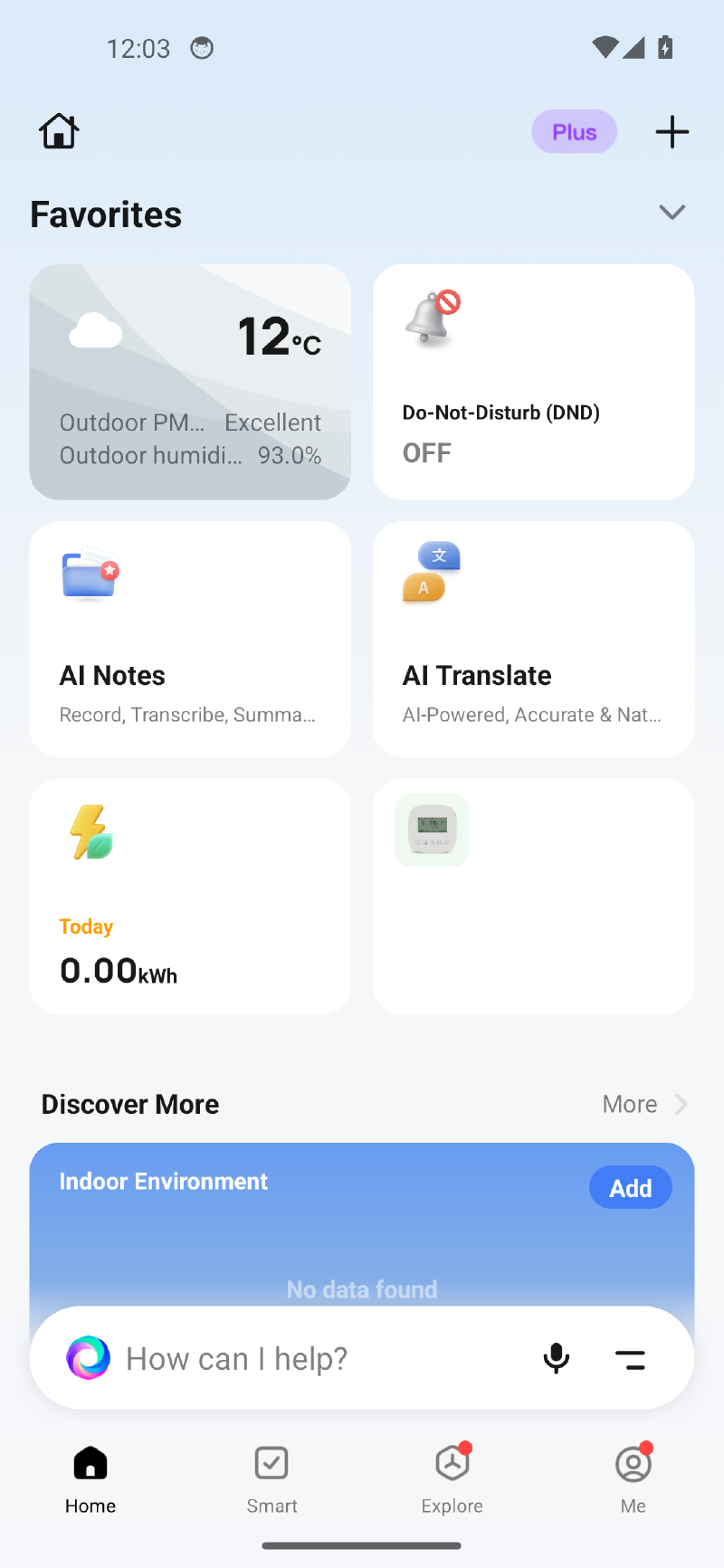
6668/tcp device it manages is the tile at the bottom-right (account/location details redacted).Pulling the key out of process memory #
With root and a userdebug SELinux, reading another process’s memory is straightforward:
adb shell setenforce 0            # permissive
pid=$(adb shell pidof com.tuya.smart)

# dump every readable mapping of the process
: > /data/local/tmp/memdump.bin
while read range perms rest; do
  case "$perms" in r*) ;; *) continue ;; esac
  s=${range%-*}; e=${range#*-}
  si=$((16#$s)); ei=$((16#$e))
  dd if=/proc/$pid/mem bs=4096 skip=$((si/4096)) \
     count=$(( (ei - si + 4095) / 4096 )) >> /data/local/tmp/memdump.bin 2>/dev/null
done < /proc/$pid/maps
Then just search for the shape of the thing you’re after. The encrypted disk store was useless, but the decrypted JSON the app had parsed was right there:
grep -aob "localKey" /data/local/tmp/memdump.bin | head
# 3516582:localKey

dd if=/data/local/tmp/memdump.bin bs=1 skip=3516582 count=160 | od -An -c
# l o c a l K e y " : " <16 chars> " , " m a c " : " ...
A few bytes of context gave the full device record:
{"devId":"<redacted>","localKey":"<redacted 16 bytes>","mac":"<redacted>",
 "name":"<device>","productId":"<redacted>","cloudOnline":true, "dps":{...}}
There it was — the key that the cloud would have handed me, sitting in RAM because the app needed it to talk to the device on 6668.
Verifying and applying it #
import tinytuya
d = tinytuya.Device(dev_id, "192.0.2.33", recovered_key, version=3.5)
print(d.status())   # {'dps': {'1': True, '2': 'manual', '28': 'PumpA', '56': 0, ...}}
Protocol version matters (3.3/3.4 gave me 904/914; 3.5 worked). With the key confirmed, I wrote it into the localtuya config entry, restarted Home Assistant, and the entities came back. (I stopped HA while editing its .storage JSON so it wouldn’t overwrite the change.)
Bonus: reimplementing the app’s cloud API in Python #
The emulator dance works, but it’s manual. The app gets the key from Tuya’s mobile API — so why not speak that directly?
The mobile API is not the IoT Platform OpenAPI. It’s the one the app itself uses:
endpoint: https://a1.tuyaeu.com/api.json     (EU; .us/.cn/.in per region)
GET ?a=<action>&clientId=...&deviceId=...&time=...&sign=...
Requests are signed. Two schemes exist; the modern one is HMAC-SHA256 over a canonical string of the parameters:
strToSign = "||".join(f"{k}={v}" for k,v in sorted(pairs) if k in SIGN_KEYS)
sign      = HMAC_SHA256(keyHmac, strToSign)      # keyHmac = certSHA256_secret2_appSecret
There’s a nice quirk: postData is hashed with a “diced” MD5 (four 8-hex blocks reordered) before signing.
Login uses an ephemeral RSA key: ask for a token, encrypt md5(password) with RSA_NO_PADDING, then submit it. And there’s a QR flow for the login-averse:
tuya.m.user.qr.token.create→ a token- show
tuyaSmart--qrLogin?token=<token>as a QR - poll
tuya.m.user.qr.token.user.get({"token": …}) until the app approves
I implemented all of it (~200 lines of stdlib Python) and validated the signing against a published historical test vector — it matched byte-for-byte:
SELFTEST PASSThen the live tests. QR login, scanned from the terminal as half-block UTF-8 art:
Scan this with the Tuya app (Me -> scan icon):
  tuyaSmart--qrLogin?token=EU179105878655237...

  █▀▀▀▀▀█ █▄▄█  █ █▀██▄▄█  █▄▀  ██  █▀▀▀▀▀█
  █ ███ █ ▀ █▀▄ ▄▀█ ▄█▄ ▀▀▀▀█▄▀▄██  █ ███ █
  ...
After a scan, the poll flipped from {"result": true} to the login result, and I had a fresh session:
sid   : eu<redacted>
{"name":"<device>","devId":"<redacted>","localKey":"<redacted>", ...}
And session reuse: if you already have the app’s sid and deviceId (I pulled them from the emulator’s memory the same way as the key), you can list devices with no login at all:
./tuya_app_api.py devices --sid <sid> --device-id <deviceId>
# -> every device in the account, with its localKey
That’s three working paths — password login, QR login, and session reuse — all against Tuya’s own app API, with no developer project required.
Lessons learned #
- App credentials live in the app. The
clientId,appSecret, certificate hash, and a token buried in a BMP asset are all extractable from the APK. The certificate hash matched a public reference exactly, which made the signing key trivial to reconstruct. - Encrypting data at rest is not enough. The app encrypted its preferences and databases, but the decrypted values were in memory the whole time. On a device you control (or an emulator you control), process memory is fair game.
- A rooted emulator is an underrated RE tool. For “phone app on a server” problems, cloning the app into a
google_apisAVD is often faster and cleaner than fighting a locked-down handset. - Tuya’s mobile API still works, and QR login is pleasant. It sidesteps the IoT Platform’s trial/refresh mess entirely.
- Keys rotate. Everything here is a point-in-time recovery; re-pair the device and you do it again.
Conclusion #
The pragmatic chain turned out to be: don’t chase the cloud you can’t use; use the app you can run. Encrypted storage didn’t matter because the plaintext was in RAM, and once I understood the app’s HTTP signing, getting the key was a single signed request. The watering controller is back in Home Assistant, and I have a small Python client that can pull keys for the whole account via password, QR, or a reused session.
If you’re doing this: do it on your own devices, on your own accounts, and keep the keys out of your git history.
— Max Severance